
Move WordPress without downtime
Install the VEDOS Migration plugin and start the transfer. The plugin prepares a test copy, automatically copies your website to Hosting WP and, once finished, lets you try everything out first.

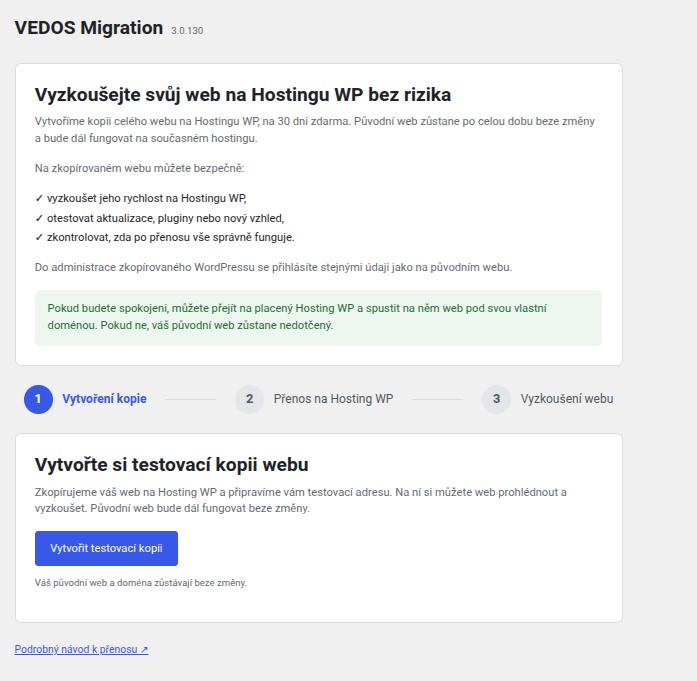
Start the transfer in the plugin
VEDOS Migration prepares a test environment on Hosting WP. Nothing changes on your original hosting yet.
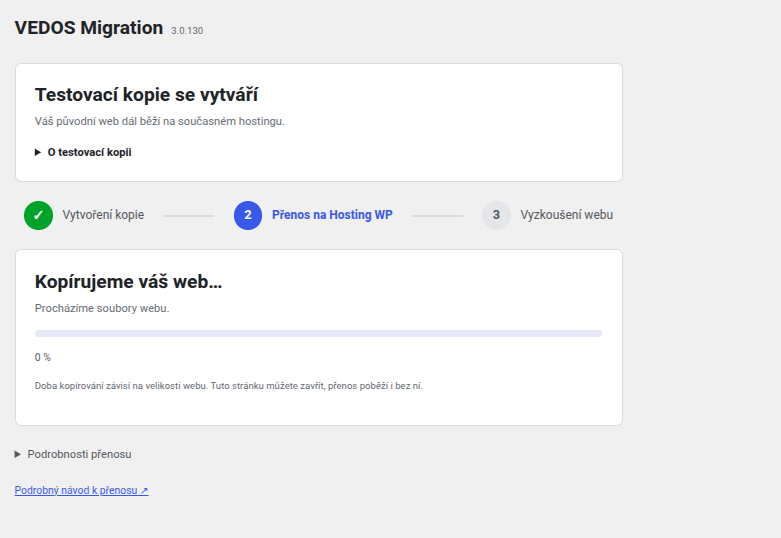
Your website is copied automatically
The plugin transfers the data to Hosting WP. You can see the progress right in the admin and you can close the page while copying.
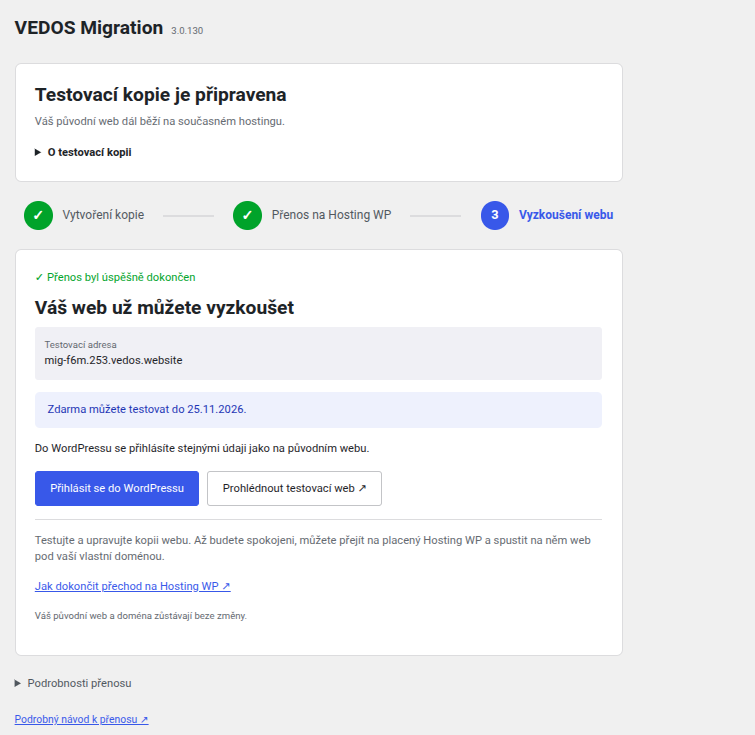
Try out the finished copy
You get a test address where you can check your website thoroughly. Only then do you complete the move to Hosting WP.
Test your new website first. Put it live only after that.
The migration creates a separate test copy of your WordPress on Hosting WP. Meanwhile, your original website keeps working as usual. On the new copy you can check the design, speed, forms, logins, orders and other important features.
Copying runs separately and you can keep using your current website as usual.
You have the test copy long enough to check your website thoroughly.
You go live only once you are happy with the test copy.
Three stages of the transfer right in WordPress
Switch between the steps and see what you will actually see in the VEDOS Migration plugin during the migration.
Preparing the transfer
After you start the migration, the plugin first prepares an environment on Hosting WP into which your WordPress can be safely copied.
- The plugin waits for the Hosting WP server to be prepared.
- This stage usually takes a few minutes.
- Your original website is still running on your current hosting.
Copying your website to Hosting WP
As soon as the environment is ready, the plugin automatically starts transferring your WordPress.
- You can see the current copying progress in the admin.
- The transfer time depends mainly on the size of your website.
- Your original website stays available while copying.
The test copy is ready
When finished, you will see a test address where you can open your new website right away or log in to its WordPress.
- You log in to WordPress with the same details as on your original website.
- You can open the test website with one click.
- The plugin then offers you the steps to complete the move to Hosting WP.
What to check on the test website?
The test copy is there so that you can verify the most important parts of your website before moving to your own domain.
Go through the main pages, menus, images and the mobile view.
Test contact forms, orders and sending messages.
Try the admin and any user accounts.
Check payment gateways, SMTP, monitoring and other integrations.
The complete migration procedure
If you want to know the individual steps in more detail, you will find them described below.
1. Installing the VEDOS Migration plugin +
Install the plugin in the WordPress you want to move to Hosting WP.
- Download the VEDOS Migration plugin .
- Log in to the admin of your original WordPress.
- Open Plugins → Add New Plugin → Upload Plugin.
- Select the downloaded ZIP file and install the plugin.
- After installation, activate the plugin.
2. Starting the migration +
After activation, open the item VEDOS Migration in the left WordPress menu and start creating the test copy.
The plugin first prepares the environment on Hosting WP. In the admin you will see the first step Creating the copy and the status Preparing the transfer.
You don’t need to wait on the page at this stage. The plugin explicitly lets you close the page and the process will continue.
3. Automatic copying of the website +
As soon as the Hosting WP environment is ready, the migration moves to the second stage.
The plugin starts going through and copying the website content and shows the transfer progress in the admin. The copying time depends mainly on the size of your website.
Your original WordPress keeps running on your current hosting during this operation.
4. Trying out the test copy +
When the transfer is finished, you will see the message The test copy is ready.
The plugin shows the test address and two main options:
- log in to WordPress,
- open the test website.
The login details for the test WordPress are the same as on your original website.
On the test copy we recommend checking speed, forms, e‑mails, the cart, logins and connections to external services.
5. Completing the move to Hosting WP +
Once you have checked the test copy and are happy with the result, continue with the link How to complete the move to Hosting WP, which you will find right in the plugin.
Until then, your original website and your own domain stay unchanged.
So you make the final move only after you have verified the new copy.
Try out your new website first
Download the VEDOS Migration plugin and create a test copy of your WordPress.